Your terminal,
with everything around it.
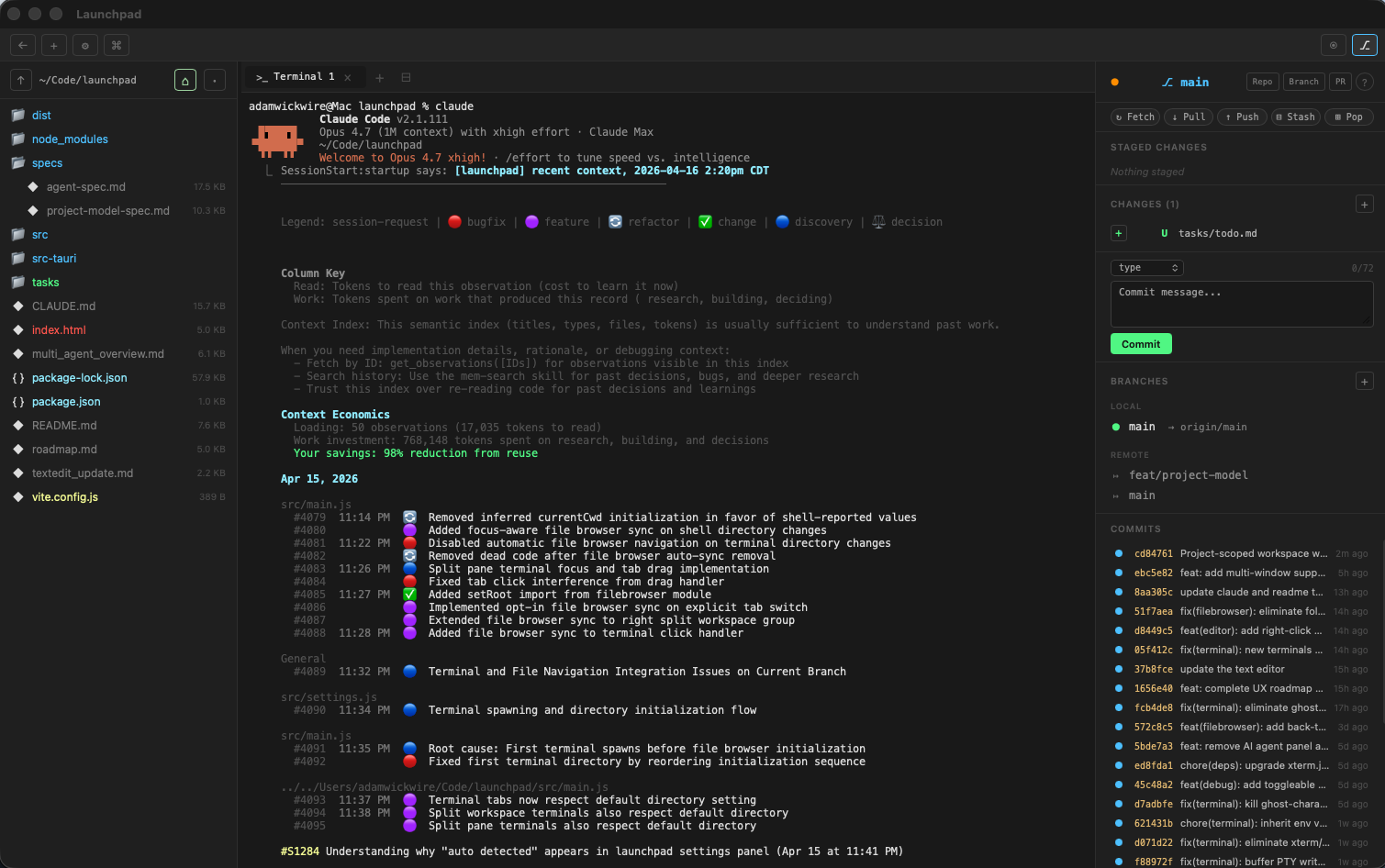
A native macOS workspace for running Claude Code, Aider, and other CLI coding agents. A real PTY terminal up front, with the visual tools you actually want around it — a file browser, a git panel, and a git-aware code editor.
Why I made it
I wasn't trying to reinvent anything. I just wanted a tool that fit how I actually code with CLI agents. Open a project, have a terminal ready, click around files without worrying about breaking the shell, commit stuff without remembering git flags. I told Claude I wanted a desktop app — it suggested Tauri + Rust + vanilla JS. I said sounds good, we'll figure it out. This is what we figured out.
// terminal
A real PTY with tabs, split panes, and a split workspace. Proper
signal handling, 256 colors, Unicode 11 widths, WebGL rendering.
Run claude, aider, or anything else you
normally run in a terminal.
// project-scoped
One window = one project. Every terminal spawns in the project
root. The file browser is root-locked. ⌘P stays inside
the project. Browse folders without accidentally sending a
cd to your agent.
// git panel
Stage, commit, push, pull, stash, merge, branch — all from buttons. Amend, cherry-pick, and interactive rebase with drag-to-reorder. Inline conflict editor with Accept Ours / Theirs, plus a 3-pane merge tab when you need full context. Compare any two refs in a dedicated diff tab. I don't want to remember git flags either.
// editor
CodeMirror 6, lean by default. Syntax highlighting, find & replace, folding — plus a git change-gutter (revert a hunk inline), blame, and a symbol palette (⌘⇧O). Want real diagnostics, completion, and go-to-definition? Flip on the language server. Off until you ask.
// file browser
A tree view rooted at the project. Color-coded by git status and file type. Right-click to create, rename, delete, reveal in Finder. A live filesystem watcher picks up terminal-side changes without a manual refresh.
// built for how I work
The terminal is the center. Everything else orbits it and stays out of the way unless you need it. No extension marketplace, no language servers chewing RAM unless you turn them on, no dashboards I have to click past.
Install
Two paths: download the DMG (Apple Silicon, easiest) or build from source.
Download
Grab the latest .dmg from
Releases.
Open it, drag Launchpad.app to /Applications, and
double-click to launch. The app is code-signed and notarized by Apple, so
there's no Gatekeeper warning — no xattr workaround needed.
From source
Prerequisites: Rust and Node.js.
git clone https://github.com/WalrusQuant/launchpad.git
cd launchpad
npm install
npx tauri build

cp -R src-tauri/target/release/bundle/macos/Launchpad.app /Applications/
See Getting started for a full walkthrough,
including npx tauri dev for a hot-reload dev build.
The shortcuts that matter
Everything is keyboard-first. Full list on the shortcuts page.
| ⌘P | Quick open file (fuzzy search across the project) |
| ⌘⇧O | Go to symbol in the current file |
| ⌘T / ⌘W | New terminal tab / close tab |
| ⌘D | Split terminal pane (two PTYs in one tab) |
| ⌘\ | Split workspace into left/right groups |
| ⌘G | Toggle git panel |
| ⌘⇧N | New window (opens a fresh project picker) |
| ⌘, | Settings |
See it in motion
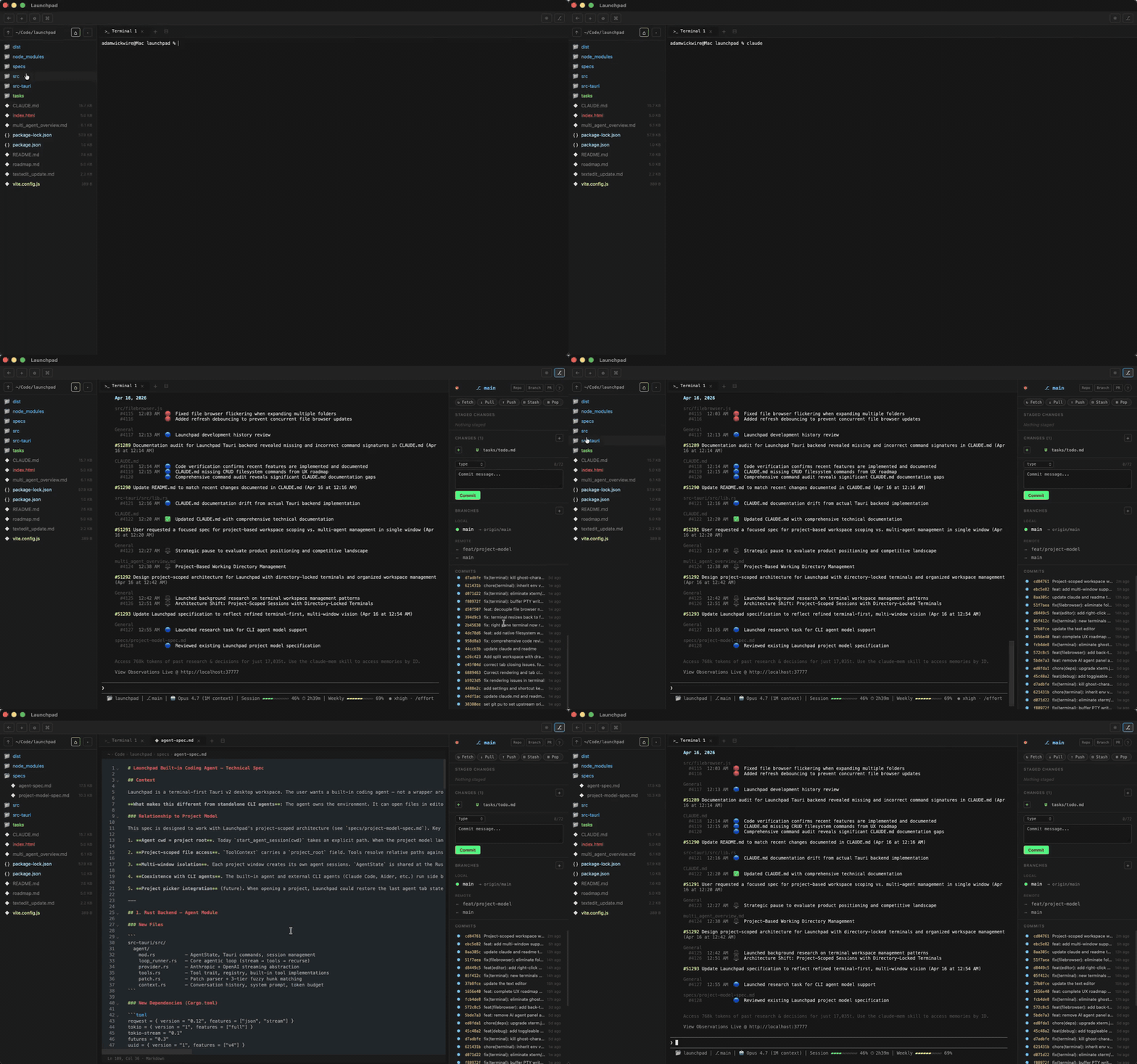
A quick demo of a project open — terminal, file browser, git panel.
Open source. Apache 2.0 licensed.
Fork it, steal bits from it, file an issue, send a PR. It's all on GitHub.